

A plain HTML website can load AddFreeChat through the same script supplied by the dashboard. You do not need to build a messaging server into every page. Your page loads the widget, while the dashboard manages its appearance and the support inbox receives the conversations. The essential detail is placing the right script in the right published document.
This guide suits static HTML, generated HTML and server-rendered layouts. A site built with a framework may have a dedicated script component or a root document template; use that framework’s guide when it controls how external scripts are loaded. Avoid pasting executable code into an ordinary text editor field and assuming it will run.
Understand the three parts of the embed
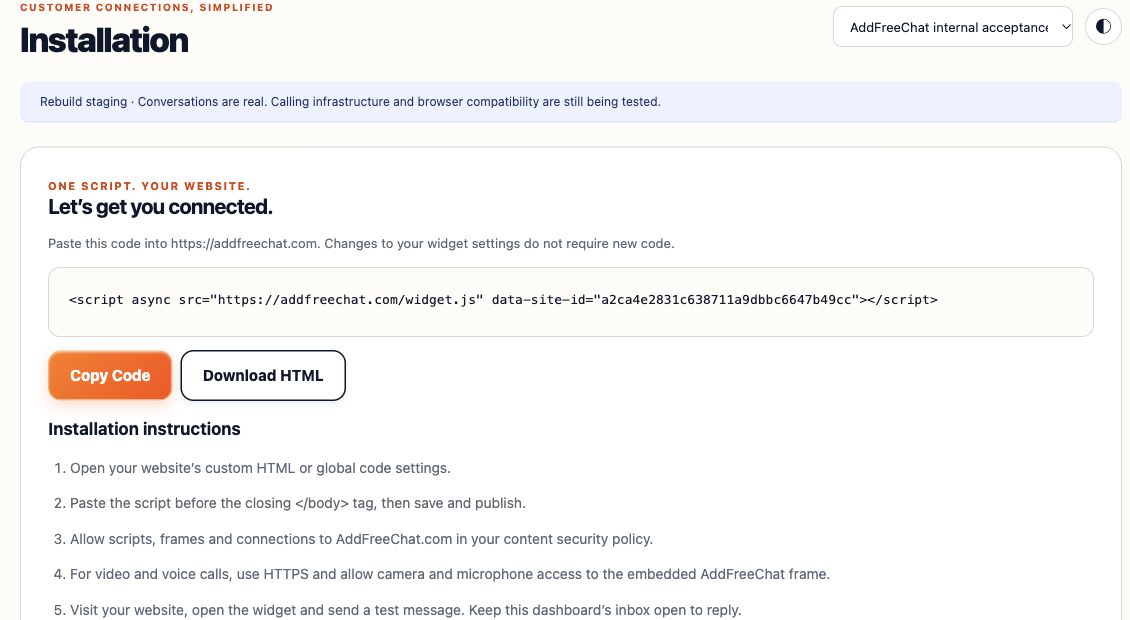
The supplied element names the AddFreeChat loader, includes an async attribute and identifies your website through data-site-id. The loader address is stable, so routine widget setting changes do not require editing the website. The identifier is public installation information; the long account access key is private and must never be substituted into this field.
The async attribute allows the browser to obtain the loader without waiting to finish it before continuing ordinary HTML parsing. It does not make every cost disappear or guarantee a PageSpeed score. Test the whole page after installation, especially if it already contains several analytics, advertising or marketing scripts.
The widget appears in its own embedded interface. Your website’s CSS is not the supported way to recolour its internal buttons. Use Widget Designer for supported changes. This separation also means the host page’s security rules and frame permissions can affect the widget even though the main page itself appears healthy.
1. Verify the website and select it in the dashboard
Create your account, save the one-time key, add the website and complete the DNS ownership check. Use the origin you intend to publish. A local development address and a production HTTPS domain are different environments; do not expect one verified host to grant access to every other address.
Select that website before opening Installation. If you maintain several customer websites, take an extra moment to compare the selected name and the intended public address. A valid script for the wrong website can create confusing support history even when the browser accepts the syntax.
2. Find the shared layout rather than editing every page
For a small hand-written site, the shared footer or document template is often the right location. A generated site may keep its base layout in a layouts directory. A server-rendered site may use a common template that emits the closing body tag. Identify the file your build or server actually uses, not a generated output file that will be replaced on the next deployment.
Make a recoverable copy of the original layout before editing. Add only the supplied widget element near the end of the body and leave the existing closing tags in place. Do not paste it inside another script, a comment, a code example or a JSON block. Those locations can leave the element visible in source without causing it to execute.
Use this shape as a reading aid, and copy the real identifier from your dashboard:
<script async src="https://addfreechat.com/widget.js"
  data-site-id="YOUR_PUBLIC_SITE_ID"></script>
YOUR_PUBLIC_SITE_ID is a placeholder, not a working test account. Preserve the quotation marks and the complete closing script tag. Keep the element once per document. If a tag manager and a layout both install the loader, remove the extra installation through a recoverable edit rather than relying on duplicate loading to behave harmlessly.
3. Build, publish and inspect the result
If your site has a build process, run it and publish the resulting site through your normal deployment process. Editing a local template has no effect on visitors until the new output reaches the public server. Open the public page and inspect its rendered source or developer tools to confirm the loader address and expected data-site-id are present.
A cached HTML response can still contain the old version. Clear the appropriate page or deployment cache, then test again. Avoid turning off all caching across the website as a permanent workaround. The goal is to refresh the changed document while keeping the rest of your normal performance controls.
Test more than one route. A blog article might use a different layout from the homepage, and a landing page might omit the shared footer. Decide deliberately which pages should offer support. If you intentionally hide the widget on some pages in Widget Designer, do not mistake that setting for a failed HTML installation.
4. Check the browser’s loading restrictions
A content security policy may reject the loader script, its frame or its connections. Read the browser’s blocked-resource message and compare it with the installation instructions. Ask the person responsible for the policy to allow the specific AddFreeChat origins required by the deployed integration; do not replace a careful policy with unrestricted wildcards.
A consent manager may hold back custom scripts until a visitor makes a choice. Establish the appropriate consent treatment for your actual deployment, including storage and tracking purposes. Test both permitted and withheld states. An embed hidden by a deliberate consent choice should not be described as mysteriously broken.
For calls, the parent document also needs compatible camera and microphone permissions. The supplied loader delegates relevant permissions to its frame, but a restrictive host Permissions-Policy can still prevent capture. Text chat can remain functional in that situation. Troubleshoot text loading and device access as separate layers.
5. Verify the full conversation
Open Live Inbox for the selected website and keep it available. Visit the public page as a visitor, open the widget and send a harmless unique message. Reply from the inbox and read the reply in the widget. This checks the connection and tenant selection as well as the visual launcher.
Refresh the visitor page, minimize and reopen the widget, and follow an internal link. Check that the launcher does not multiply and that the conversation remains usable. Try the site at a narrow mobile width with the keyboard open, because a launcher can overlap navigation or a sticky purchase button even when the desktop page looks balanced.
If no agent is available, inspect the configured hours and offline wording before repeatedly reinstalling the script. The installed widget and the support team’s availability are different conditions. A correct offline state is useful information for visitors, provided it accurately describes when someone will respond.
6. Keep future maintenance simple
Update colours, messages, channel settings and supported layout choices in Widget Designer. Save the settings and confirm the real embed reflects the change. Avoid adding a second script whenever you want a new welcome message. Keep the installation location documented so a future developer knows which template owns it.
After a theme or site-generator upgrade, repeat the loading and two-way message checks. A refactor can remove the shared footer, change the consent integration or introduce a new security header. Repeating a small acceptance test catches those changes before a customer has to report that support is unavailable.
Common questions
Can I paste the account key into the script? No. Use the public website identifier generated in Installation. Keep the account key in your password manager and out of all public source files.
Does async guarantee the widget never affects performance? No. It changes loading behaviour, but every integration still uses network, processing and layout resources. Measure representative pages and test interactions on a real mobile device.
Can I make the widget work by removing browser security? Keep the protections and correct the specific integration rule. Certificate warnings, broad permission changes and unrestricted content policies are not an appropriate substitute for a correctly configured HTTPS installation.
References and review notes
Platform instructions reviewed on 27 November 2026. Builder-specific steps follow the linked official documentation and still require testing on your own published site.