

A small business can use video support for questions where a picture adds useful information: identifying a visible fitting, explaining a product feature or discussing the scope of a service. The value comes from choosing the right task and preparing the people involved. A camera button by itself does not create a staffed consultation service.
AddFreeChat offers optional browser video alongside text. Customers do not need a separate installed meeting client for the supported workflow, but they still need a suitable browser, permission and connection. This guide helps a small team offer video deliberately without promising universal availability or collecting more personal information than the task needs.
1. Choose one visual task to support well
Start with a question your business already receives. Ask whether seeing an item or demonstrating a step would change the quality of the answer. If a public link or short written explanation resolves the issue, text may be the simpler route. Video should serve the task rather than make every enquiry feel like an appointment.
For example, a hardware supplier might help identify a visible connector, while a service provider might explain a published service boundary. These are hypothetical planning examples, not measured customer cases. Do not use video to give specialist regulated advice outside your competence or to bypass a formal assessment process.
Define what the agent can decide during the call and what needs later investigation. Keep a public description of the service accurate. If video is only available at certain times, say so before the customer starts waiting. Avoid implying a booking or calendar integration that the basic chat embed does not provide.
2. Plan coverage around a small team’s real capacity
Decide who can answer and which hours they can reliably cover. A sole trader handling a walk-in customer may not be able to take an immediate website call. Set honest opening hours and offline wording, and leave a contact route for a visitor who cannot stay online.
Give each teammate an individual account and the appropriate website role. Agree who owns an incoming conversation and how to hand it over. Availability and capacity settings support that routine, but they do not mean one person can conduct several meaningful video discussions simultaneously.
Prepare a quiet place, a suitable camera view and headphones. Keep private paperwork and customer screens out of view. The customer should be able to choose whether to show their surroundings, and an agent should not need to expose another person’s information while demonstrating a product.
3. Install text and enable video deliberately
Create the dashboard account, save the one-time key and verify the public website through the supplied DNS process. Install the generated script once in the site’s supported code location. Complete a real text exchange between the visitor widget and Live Inbox before testing devices.
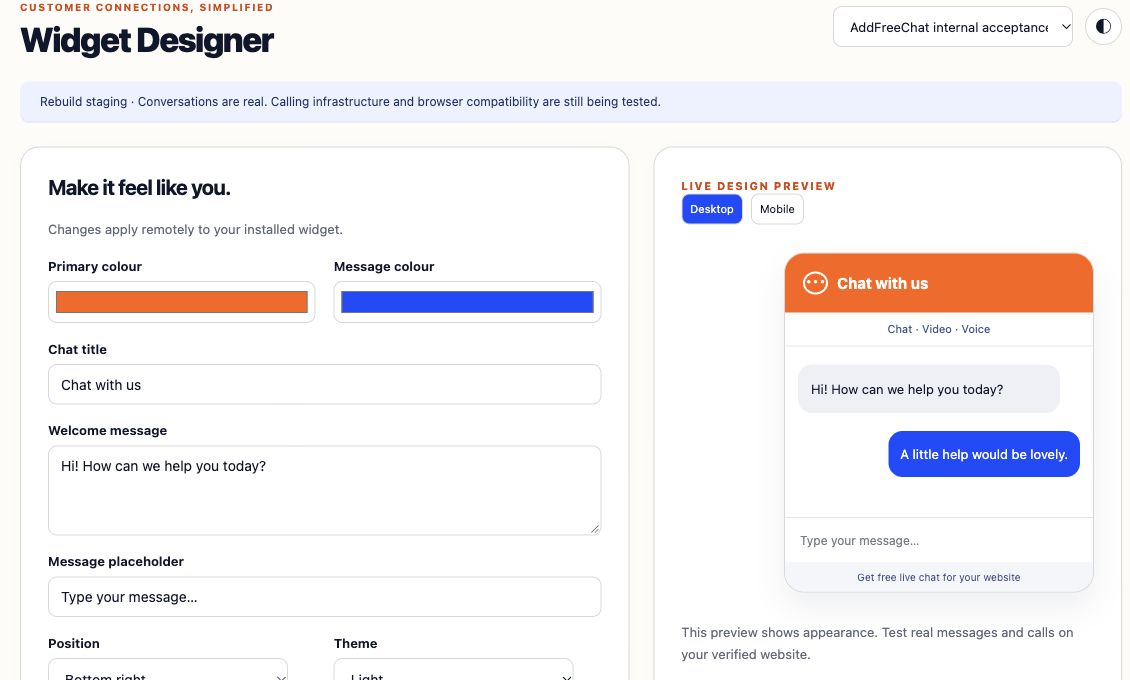
In Widget Designer, enable Video calling for the selected website and keep Text messaging available. Choose wording that explains what the call is for. Save the settings and inspect the actual embed rather than treating the visual design preview as a call test.
Calls need HTTPS, device permission and compatible frame policies. A text-only success does not establish that the customer’s camera or microphone can start. Keep the device troubleshooting guide available, and offer another channel when the browser, organisation or visitor declines capture.
4. Explain the call before it starts
Ask whether a call would help and tell the visitor which devices it uses. A useful invitation is brief: “Would you like to show us the connector on video? You can keep using text.” Avoid pressuring the person to show their face or a private room when the task only needs an object.
Do not imply that the service silently records the discussion. The current AddFreeChat call workflow does not record calls. If your business later introduces any separate recording or transcription process, it needs its own implementation, transparency and review rather than being assumed from the existing call button.
For private customer records, use the established identity-check process before disclosure. A person appearing on camera is not automatically verified for every account action. Keep payment credentials and passwords in their normal secure flows, not in a spoken or visible demonstration.
5. Test the real workflow before advertising it
Use consenting participants on separate devices, ideally on different networks. Start from the embedded visitor widget, accept from the support side and check both local previews and remote video. A local picture proves capture, while the remote view establishes reception at the other endpoint.
Check audible speech in both directions, the chosen microphone and output, mute behaviour and clean hangup. The isolated demo’s generated video and silent track are useful connection tools, but they do not prove physical-device audio. Record each result separately rather than writing only “call passed.”
Try a lower video quality if the network or device struggles. Clear speech and a stable view can be more useful than maximum resolution. Test the relevant phone camera switch only on a device that supports your intended workflow, and do not present a desktop test as universal mobile acceptance.
6. Use screen sharing sparingly
Screen sharing can help demonstrate a website step, but it is a separate browser-mediated choice with support that varies by device and browser. Ask the person to choose the specific tab or window needed. Avoid requesting an entire desktop when a narrower view is enough.
Before sharing, close unrelated confidential content and consider notifications that might appear. Explain how to stop sharing and confirm the expected camera restoration where supported. Never treat an accepted chat invitation as permission to capture the customer’s screen automatically.
A screen-share demonstration is not remote control of the customer’s device. Give understandable instructions and let the person act. Do not ask them to reveal a password or approve an unrelated security prompt because it makes the support task more convenient.
7. Keep a useful written next step
After the discussion, send a concise text summary of the agreed action and any relevant public link. State what still needs checking and who owns it. If the matter moves to another business process, explain that handover rather than assuming the customer understands the internal workflow.
Use private notes for necessary team context, separating confirmed facts from assumptions. Avoid recording unnecessary descriptions of the customer or their surroundings. A video conversation can be personal, but the case record should stay focused on the support task.
Do not promise automatic appointment reminders, background notifications or a follow-up campaign unless those workflows are implemented and tested. Use the business’s existing contact route where appropriate and make the expectation explicit before ending the conversation.
Review whether video is helping
Look at recurring tasks, customer feedback and the quality of the next step. Do not claim a sales uplift or time saving without a defined measurement method. With a small number of calls, qualitative review can be more honest than a precise percentage.
Video support is worthwhile when it helps a customer understand or show something that text cannot easily convey. Offer it as a clear choice, staff it realistically and keep the fallback just as usable.
A practical review exercise
Practise with a harmless object before using video for customer support. Ask the test partner to show only the detail needed, explain your conclusion in plain language and send the next step in text. Check whether the camera actually added useful information. If it did not, keep that type of enquiry in the simpler channel.
References and review notes
Platform instructions reviewed on 27 November 2026. Builder-specific steps follow the linked official documentation and still require testing on your own published site.