

Wix offers a Custom Code area for snippets that integrate external services, including chat widgets. AddFreeChat supplies the script you place there and provides the separate dashboard where your team answers visitors. Use the supported code integration rather than placing a picture of a chat button on the page or assuming an ordinary text box can execute JavaScript.
The important test happens on the published website. Wix’s official documentation says Custom Code requires a published site with a connected domain, and its effects are not ordinary elements in the editor canvas. Confirm that the feature is available for your account and site before planning the installation; plan names and editor variants can change.
1. Match the AddFreeChat website to the public Wix domain
Create your AddFreeChat dashboard and save the one-time access key. Add the public HTTPS address used by visitors, then follow the supplied DNS ownership verification instructions. If Wix manages your DNS, use its domain controls for the record; if another provider manages DNS, make the change there instead.
The website address is an origin, not just a business name. A temporary preview host, the connected custom domain and a www variant can differ. Select and verify the origin you intend to test. A successful publication in Wix does not replace the separate AddFreeChat ownership check.
Keep your private access key out of Wix page source and screenshots. The installation script contains a public website identifier, which is the value intended for the embed. Give each support teammate an individual dashboard account and invitation rather than copying the owner’s key into a shared working document.
2. Prepare a simple first widget
In Widget Designer, set a title and welcome message that explains what customers can ask. Choose a launcher position that avoids Wix’s own mobile navigation, basket and consent banner. Start with text messaging, save the settings and leave calls for a separate acceptance test.
Set opening hours in the business time zone and check the offline wording. If you are a sole trader, a realistic promise such as answering during advertised office hours is better than implying continuous staffing. Decide which existing contact method visitors can use if they cannot wait in chat.
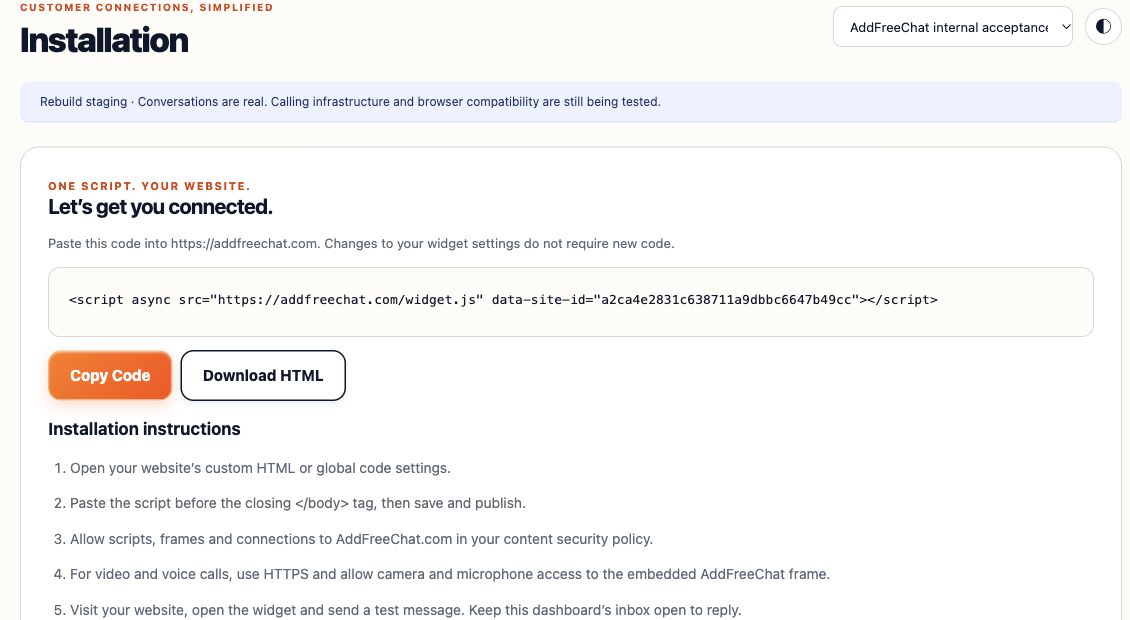
Open Installation for the selected website and copy the complete embed. The screenshot shows the shape of the dashboard, with an internal test identifier; use your own generated code. Routine changes to colour and welcome text are saved remotely and do not require repeatedly replacing the Wix snippet.
3. Use Settings and Custom Code in Wix
In the Wix site dashboard, open Settings and then Custom Code. Add a new snippet and paste the AddFreeChat code. Give the entry a recognisable name such as “AddFreeChat storefront support” so another site maintainer can identify its purpose later.
Choose body-end placement for the supplied embed and the page scope you intend to support. Wix exposes scope and loading options; inspect those choices rather than accepting them without understanding whether the code applies to the whole site or selected pages. Install a single snippet and avoid adding the same integration through a second custom-code entry.
If your site already uses a project-level embedded script or another managed integration path, check whether it contains AddFreeChat before adding a dashboard copy. One installation owner is easier to maintain. Record which entry holds the code and which public domain was verified.
Save the entry and publish through the site’s normal workflow where required. Menu wording can vary between Wix editor generations, but the dashboard’s supported Custom Code feature is the relevant integration surface. Do not follow an unrelated tutorial that asks you to rebuild the site or change hosting just to add a widget.
4. Test published pages and navigation
Open the connected domain as an ordinary visitor. Check the homepage and at least one service or product page. Open the widget, minimize it, navigate to another page and open it again. Confirm that navigation does not leave a stale overlay or create multiple launchers.
Try the page at mobile width and on a real mobile browser. Wix layouts may add fixed buttons or a mobile action bar near the same corner. Use the widget’s supported position and offsets to keep those controls reachable. A launcher that is visible but covers a booking or purchase control is not an acceptable installation.
If the widget does not appear, first compare the published domain, snippet scope and AddFreeChat website selection. Then inspect consent choices and blocked-resource messages. A snippet absent from an editor preview is not decisive, because Custom Code is intended to run on the published site.
5. Verify the complete text exchange
Keep the AddFreeChat Live Inbox open and send a harmless unique message from the Wix visitor page. Reply in the inbox and confirm that the visitor sees it. Follow a normal internal link and repeat a short exchange. This tests the integration more thoroughly than seeing the launcher alone.
Test the intended closed-hours experience too. The widget’s availability message should match the schedule and team capacity you actually provide. Do not promise an automatic follow-up email unless that particular workflow and destination have been verified. An offline text conversation and a contact form are different features.
For a service business, use a realistic question such as whether a published service includes a particular task. Answer with the relevant public information and a next step. Avoid collecting addresses, payment credentials or sensitive documents before knowing whether they are needed to resolve the enquiry.
6. Understand the boundaries of custom code
A basic chat embed does not automatically integrate Wix Stores, Bookings or member records. Wix’s documentation describes limitations around custom-code access to its managed APIs and generated page selectors. Do not build a support promise around scraping unstable element identifiers or assuming the widget can inspect a customer’s booking.
If you later need a dedicated booking or commerce connector, treat that as separate development with explicit data permissions and acceptance tests. For now, guide visitors through the public page and use your existing authorised business tools to handle private records. Explain to agents what they can and cannot see.
Voice and video also have separate requirements. HTTPS, browser support, device permission and the host page’s frame policy all matter. If text works but the camera does not, use the device troubleshooting process rather than installing another copy of the script. Keep text available when a visitor declines a call.
Maintenance checklist
After changing a Wix template, custom-code entry, consent tool or domain, repeat the published-page and two-way conversation tests. Check both the starting page and navigation to another route. Confirm mobile controls are unobstructed and that the correct website receives the message in the inbox.
Keep a short record of the snippet’s name, placement, scope and latest test date. Remove a duplicate through the dashboard’s normal recoverable workflow, and preserve a copy of the original code. A clear installation record prevents future editors from adding a second widget because they cannot find the first one.
Common questions
Why is nothing visible in the editor? Custom Code is not an ordinary Wix canvas element. Inspect the published connected domain and verify the snippet’s configured scope.
Will the widget know a visitor’s booking? The basic embed does not create that integration. Ask the minimum necessary question and use your normal verification process before discussing private booking information.
References and review notes
Platform instructions reviewed on 27 November 2026. Builder-specific steps follow the linked official documentation and still require testing on your own published site.