

A shared support inbox works best when each person has an individual sign-in, a clear responsibility and an understandable workload. Sharing the owner’s password or access key may seem quick, but it makes access harder to revoke and blurs who is responsible for configuration and customer conversations.
AddFreeChat supports website-specific team membership, four current roles, availability and conversation assignment. This guide explains the current controls and their boundaries. It does not promise unbuilt departments, agent-avatar uploads or a complete per-agent performance suite; use the features that are actually present and review future additions separately.
1. Select the website and identify its owner
Open the dashboard and choose the website the team will support. Membership and availability are scoped to that website, so a person may have a different responsibility on another site. Confirm the selection before creating an invitation or changing routing.
The owner retains the strongest website-team control. Keep that account’s one-time access key in a password manager and configure appropriate account protection and recovery. Do not place the key in a shared chat or give it to every agent. An invitation lets a teammate keep their own account and sign-in.
Use a simple responsibility plan before adding people. Decide who answers routine questions, who supervises handovers and who is allowed to manage website configuration or team access. The role should follow the job rather than becoming a reward for seniority or a workaround for a missing button.
2. Choose the least access needed
Support agents can use the website inbox and reports, claim unassigned work and release their own assignment. Supervisors can also assign conversations within their supported scope. Account administrators have broader website and team-management responsibilities, including managing agents and supervisors.
Only the owner can appoint or remove account administrators. An account administrator cannot elevate a peer to the same level or remove another administrator through the delegated team controls. Existing legacy managers retain their supported inbox and widget-management scope; they are not silently converted into WordPress administrators.
These product roles do not grant WordPress administrator capabilities. OWASP’s authorisation guidance provides useful background on limiting access and checking permissions for each request. The dashboard’s visible controls are helpful, but server-side permission enforcement remains the important boundary.
3. Create and deliver a private invitation
In Team, choose an available role and complete the requested fresh account authentication. Use your current password or access key and an authenticator code when your account requires one. Do not ask a teammate to send you their own secret to make the invitation process work.
Create Private Invitation shows the invitation code once. Save it for delivery to the intended person through an appropriate private route. Codes expire after seven days and are one-use. They are not public website identifiers and should not be placed in the embed or on a public page.
The teammate signs in to their own account, opens Join a team and submits the invitation code. After acceptance, refresh the website list and confirm the expected shared website appears. Check the role and accessible tools before relying on that person for a live shift.
4. Review unused invitations and departing access
Inspect Invitations for this website and revoke an unused invitation if it is no longer needed or was delivered incorrectly. Revoking an unused code prevents that invitation from granting access; it is different from removing a person who has already joined.
When someone leaves the support team, use the appropriate membership-removal workflow and review their assigned conversations. Do not assume that changing a shift schedule removes account access. Keep ownership of unresolved work explicit so a departing person does not leave conversations without a next action.
Role-management controls depend on the acting user’s authority. An administrator can manage agents and supervisors but not higher or peer administrator access. If a control is unavailable, use the owner’s legitimate management process rather than sharing credentials or trying to bypass the permission check.
5. Save availability for the selected website
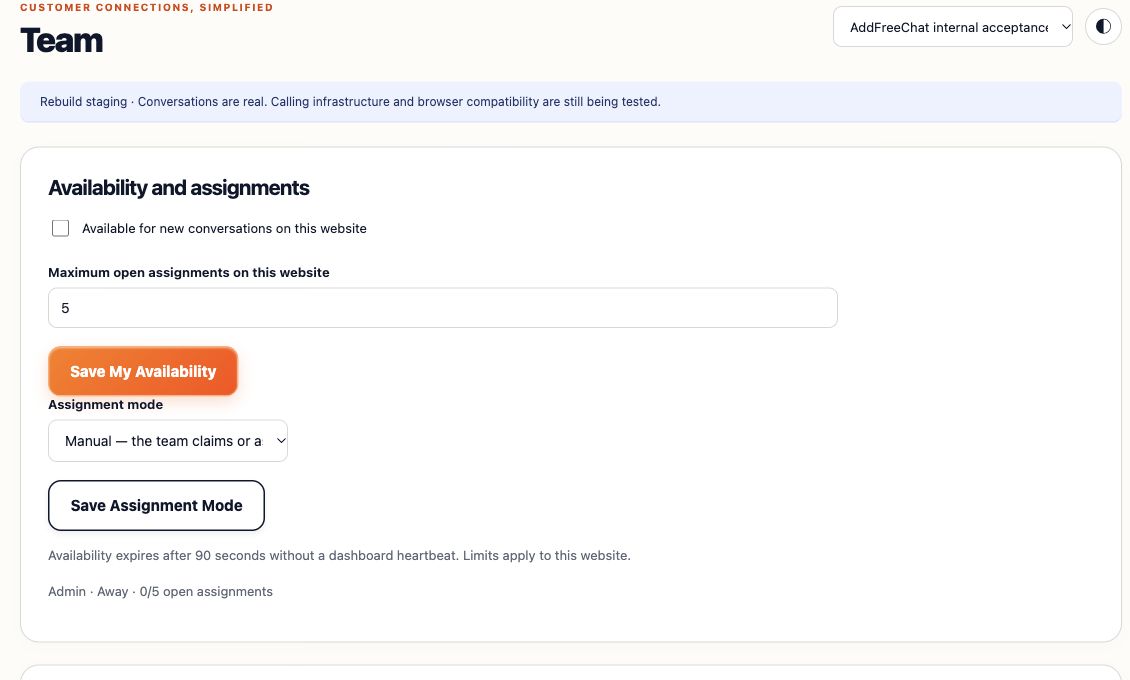
An agent marks Available for new conversations on this website and chooses Maximum open assignments, then uses Save My Availability. The supported capacity range is one to fifty open assignments per website. Pick a realistic number based on the kind of support, not the largest value the control accepts.
Availability uses a ninety-second lease renewed by dashboard heartbeats. Closing or losing the active dashboard eventually makes that lease expire. This helps routing avoid a stale “available” flag, but the team still needs an actual coverage routine and a clear plan for breaks and handovers.
Availability and business opening hours are separate concepts. The configured schedule describes when the service is open; an agent’s availability describes current eligibility for new work. Check both when diagnosing why a conversation was not assigned as expected.
6. Choose manual or round-robin assignment
Manual mode lets the team claim or assign conversations deliberately. It can suit a small desk where people coordinate work or where a supervisor needs to choose a particular specialist. Make sure unassigned conversations are monitored rather than assuming somebody else will notice them.
Round-robin mode assigns visitor-message work to eligible available agents below their capacity. It preserves an existing assignment and does not treat an expired or revoked membership as eligible new coverage. The mode is not a promise that every waiting conversation immediately receives an agent when no eligible capacity exists.
Archived conversations do not consume the same open-assignment capacity. Use the supported conversation state deliberately and avoid archiving unresolved work solely to make a number look better. An agent can claim unassigned work and release their own; stealing another person’s assignment is not an ordinary agent action.
7. Make handovers understandable
Before reassignment, leave a concise private note with the customer’s goal, checked steps, confirmed result and next action. Separate assumptions from facts. Include only the information needed to continue, and avoid copying unrelated personal details into internal notes.
Tell the customer when another person will continue and explain any expected delay. Several agents sending disconnected answers can be worse than a short, clearly owned handover. Agree when a supervisor should be involved and which questions require a separate authorised business system.
The basic embed does not automatically read private orders, bookings or member records. Team access to the chat website does not create permission to inspect every connected business tool. Keep those access decisions and identity-check procedures separate.
Review quality and capacity together
Use actual reports and conversation review to understand workload. Response time, ratings and resolution quality describe different aspects of service. Do not treat a bounded website-level report as a full per-agent employment-performance system or rank staff without context.
Review membership, unused invitations, availability settings and unresolved assignments regularly. A well-managed team has individual access, realistic capacity and a named owner for the next action. Those basics matter more than adding people to the inbox as quickly as possible.
A practical review exercise
Before a new shift, run a harmless internal exercise with two agents. Mark one available with a low capacity and leave the other away. Confirm the routing result, then change availability and repeat with a separate test conversation. Finally restore the intended mode and availability. This checks the team’s understanding as well as the controls, without treating the first real customer as the training exercise.
References and review notes
Platform instructions reviewed on 27 November 2026. Builder-specific steps follow the linked official documentation and still require testing on your own published site.