

A Joomla website can load AddFreeChat as an external script, with conversations handled in the AddFreeChat dashboard. The installation needs a supported location in your Joomla template or integration code. Avoid editing Joomla core, disabling editor filtering globally or relying on a snippet hidden inside content that an editor may remove on the next save.
For a non-developer, the simplest route is an existing documented script field supplied by the template. For a developer maintaining a current Joomla integration, the Web Asset Manager provides the appropriate script-registration mechanism. Exact template controls vary; this guide separates the common embed from the integration choice so you can use the method your site actually supports.
1. Prepare the public website and dashboard
Create an AddFreeChat account and save its one-time access key. Add the public Joomla site address, complete the displayed DNS ownership check and confirm the successful verification in Websites. Use the HTTPS origin visitors actually browse, including the intended www or non-www host.
A staging host is a separate environment. Verify it deliberately if you use it for testing, and keep test conversations recognisable. Do not assume that verifying a main domain automatically authorises every preview address or local development host. The dashboard’s website selector should match the page you are about to test.
In Widget Designer, set a useful chat title, welcome message and launcher position. Start with text messaging. Set the business time zone and opening hours, and check the offline wording. Save the configuration before copying the embed from Installation.
2. Decide which integration owns the script
Inspect the template’s supported options for a global footer or custom-script field. If a documented field exists, it may let you add the supplied element without changing PHP. Confirm that it accepts executable JavaScript and applies to the intended pages. A custom CSS box or ordinary article text field is not the same feature.
If a developer maintains the integration, keep it in an update-safe extension or template customisation appropriate to that site. Joomla’s Web Asset Manager is preferable to old examples built around deprecated document methods. Review the documentation for the Joomla version you run rather than copying an unqualified example from a much older release.
Whichever method you choose, install once and document it. A template field plus a second code integration can create duplicate loads and unclear responsibility. Do not add a second copy merely because the first one is hard to find. Inspect the published document and the existing template configuration first.
3. Use the exact public identifier
Open Installation for the selected website and copy the supplied script. The data-site-id is public installation information. Your long dashboard access key is private and has no place in a template, article, public repository or screenshot.
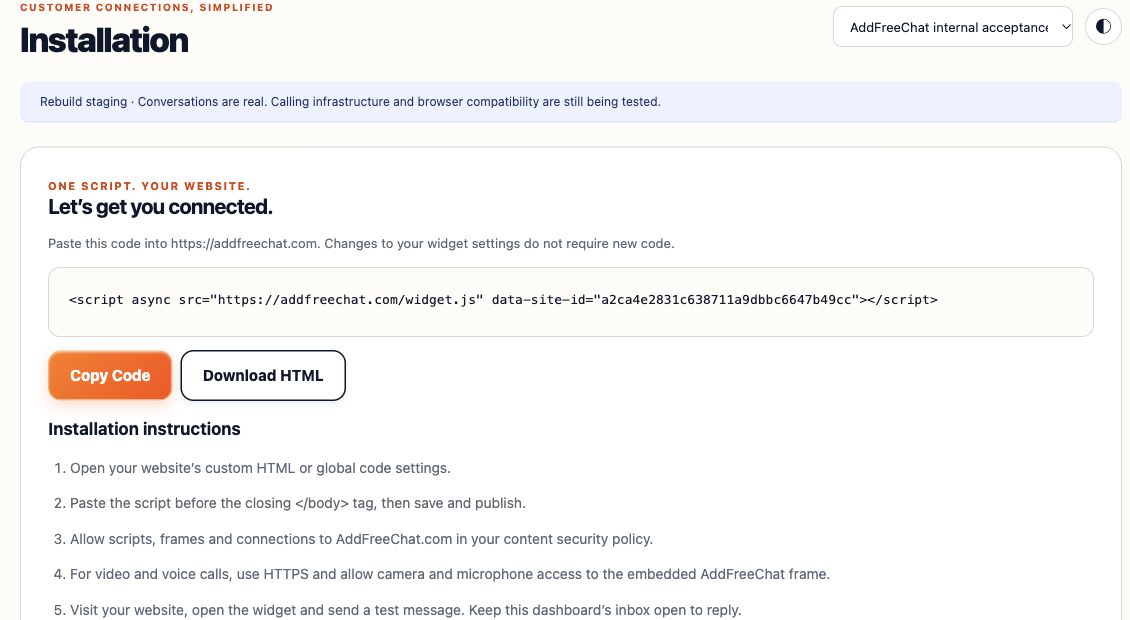
A developer using the Web Asset Manager can register the external script with its attributes and then mark that asset for use. The following reading example shows the relevant shape; it must live inside a valid, maintained Joomla integration, with the document object supplied by that integration and your own public identifier substituted:
$wa = $document->getWebAssetManager();
$wa->registerScript('addfreechat.widget',
    'https://addfreechat.com/widget.js', [],
    ['async' => true, 'data-site-id' => 'YOUR_PUBLIC_SITE_ID']);
$wa->useScript('addfreechat.widget');
This fragment is not a complete Joomla extension and should not be pasted into an article editor. The surrounding integration must determine when the asset is loaded. Keep the change recoverable and test it against your actual template and Joomla version before publishing it to visitors.
4. Publish and inspect the generated document
Save the integration and clear the relevant Joomla page or system cache. If a hosting cache also serves the HTML, refresh the changed output there. Visit the public page as an ordinary logged-out user and check that the expected loader and data-site-id appear in the generated document.
Inspect the homepage and a normal article or service page. Different menu items can use different template styles, so one successful page is not proof that every intended route contains the integration. If you deliberately restrict the widget to selected pages, keep that scope documented and test an included and excluded page.
Open and minimize the widget, follow an internal link and open it again. Confirm that navigation does not create additional launchers. At mobile width, check menus, cookie notices and any sticky action controls. Adjust the widget’s supported position and offsets so the site remains usable with the on-screen keyboard present.
5. Check filtering and security without weakening the site
If the script disappears from the published document, inspect the chosen integration location and its filtering rules. Do not globally grant every content editor permission to publish arbitrary scripts. A controlled template integration can keep the widget working while ordinary article editing retains its appropriate restrictions.
If the element is present but the browser blocks loading, read the blocked-resource message. A content security policy may restrict scripts, frames or network connections; a consent manager may also intentionally defer the widget. Correct the specific configuration with the person responsible rather than disabling the protections altogether.
Calls introduce another layer. HTTPS and the parent page’s permissions policy affect camera and microphone access inside the widget frame. Text may work while capture is blocked. Adding the script again will not change that distinction, so complete text acceptance before troubleshooting video or voice.
6. Verify the visitor-to-agent exchange
Keep the AddFreeChat Live Inbox open for the selected Joomla website. From the public visitor page, send a harmless unique message. Find the conversation in the inbox, reply and confirm the visitor receives it. Repeat once in each direction and after ordinary site navigation.
Check the business-hours and offline wording against the actual schedule. Give each support teammate an individual account and website invitation. An agent who answers questions should not need the Joomla administrator password or the AddFreeChat owner’s access key to do routine support work.
For an organisation with several departments, begin with a clearly owned manual support workflow. Do not imply that the basic embed automatically reads Joomla users, private articles or customer records. Any such connector requires separate development and permissions; use the existing authorised business process for private information.
Keep a short release record
Record the integration location, asset name if used, verified public domain and acceptance date. After a Joomla or template update, inspect the generated document and repeat the two-way message test. A file still present on the server does not prove the active template uses it.
Keep widget appearance and supported behaviour changes in Widget Designer. When something fails, identify the layer: missing element, blocked load, wrong website, unavailable agent or device permission. That sequence is faster and safer than repeatedly editing template code without a specific explanation.
A practical review exercise
For a useful template check, choose two menu items that use different template styles. Visit each as a logged-out user and inspect whether the intended script is present. Open the widget, send a harmless question and verify the matching website inbox. If only one item works, compare the active template integration before changing account keys or DNS. Record both menu items with the release note. This exercise isolates template scope from conversation transport and prevents a successful homepage test from hiding an omitted section of the site.
References and review notes
Platform instructions reviewed on 27 November 2026. Builder-specific steps follow the linked official documentation and still require testing on your own published site.