

Squarespace sites can load an external chat widget where their subscription and permissions support the required custom JavaScript. AddFreeChat provides the embed and separate support dashboard; Squarespace provides the published page. Begin by checking the actual site’s code-injection capability rather than assuming every plan or editor offers the same controls.
This guide uses the supported global footer code-injection approach. It does not require editing Squarespace’s internal generated files or trying to force a script into a field intended only for CSS. Menu names and plan entitlements can change, so use the current Code Injection help linked below if your site’s interface differs.
1. Check access and plan support before editing
Sign in with an account authorised to manage the site’s code settings. Confirm that the subscription supports custom JavaScript in the intended location. Older and newer Squarespace plan names differ, so do not rely on an old tutorial’s plan label alone. If the feature is unavailable, establish that limitation before preparing a site-wide release.
You do not need to purchase an unrelated extension merely because the widget is external. Equally, a code block that filters scripts is not equivalent to a global script-injection feature. Choose a documented integration surface and keep a recoverable copy of any existing footer code before adding another entry.
If a developer manages the site, give them the public embed and the intended domain. Do not share the AddFreeChat account key or Squarespace owner’s password. Individual account permissions and dashboard team invitations are easier to revoke and audit than a shared owner credential.
2. Prepare the website in AddFreeChat
Create the dashboard account and save its one-time access key securely. Add the public HTTPS domain visitors use and complete the displayed DNS ownership verification. A built-in preview domain and the final custom domain are different origins; select the one you will actually use for the acceptance test.
In Widget Designer, choose a title and welcome message, enable text messaging and set a launcher position. Look for possible overlap with the Squarespace cookie banner, booking controls, shopping basket and mobile navigation. Save the settings. Configure opening hours in the business time zone and use honest offline wording.
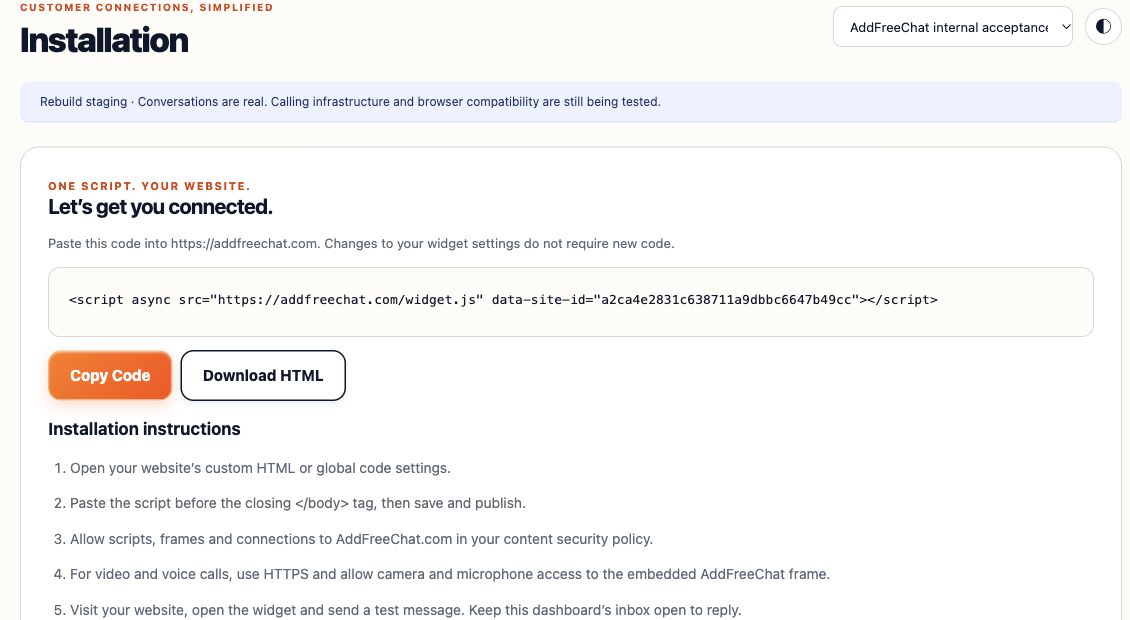
Open Installation for that website and copy the supplied code. The public identifier in your code will differ from the internal example in the screenshot. Keep the entire element together, including its source address, data-site-id and closing script tag. Never substitute the private access key into the public HTML.
3. Add the embed to the supported footer field
Find the site’s Code Injection settings using the current Squarespace interface or its settings search. Review the existing header and footer entries so you do not erase analytics, verification or other legitimate integrations. Add only the supplied chat element in the footer field and preserve the surrounding content.
Use one global installation. If AddFreeChat is already inserted through a page-level code block or another managed integration, choose one approach and remove the duplicate through a recoverable edit. Mixing several installation paths makes later theme or permission problems difficult to diagnose.
Save the code settings. If your workflow requires publishing additional page changes, complete that through the normal site controls. The editor may suppress or alter third-party scripts while you are designing, so open the published public URL for the actual widget test. Do not judge success solely from the editor canvas.
4. Inspect the published layout
Test the homepage, a content page and a page with the most important business action, such as booking or buying. Open and minimize the widget. Confirm that its launcher and open panel leave navigation, consent choices and primary buttons usable. At mobile width, test with the on-screen keyboard open.
A full-screen announcement, mobile menu or sticky purchase bar may create different stacking behaviour from a plain content page. Use the widget’s supported position and spacing controls and check the result again. If a page should not show chat, configure that deliberately instead of adding ad hoc CSS that hides essential site controls.
Compare logged-in editing views with an ordinary visitor session. Cached output and consent choices can differ. A content blocker can also suppress external widgets. Diagnose these conditions individually and keep the website’s security protections in place; a broad “allow everything” policy is not a durable solution.
5. Send a real message and reply
Keep AddFreeChat Live Inbox open for the selected website. From the published Squarespace page, send a harmless distinctive message and find it in the inbox. Reply and confirm that the visitor receives the answer. Navigate to another page, reopen the widget and repeat a short exchange.
For a consultancy, a useful test asks about the scope of a published service. Give a clear answer and link to the relevant public page. Do not start by asking for confidential project files or account credentials. The first conversation should establish what help is needed before collecting additional information.
Check the offline state separately. If you advertise particular hours, confirm the selected time zone and holiday dates. Make sure the wording does not imply an available agent when the team is away. Keep a contact route available for someone who cannot stay on the page waiting for a response.
6. Treat call support as another acceptance test
If you enable video or voice, the published page must use HTTPS and the embedding policies must permit the relevant devices. Each participant still decides whether to grant camera or microphone permission. A successful text conversation does not establish audio playback, device access or compatibility on another network.
Use a consenting colleague to test the real embedded widget from a separate device. Check both audio directions, the chosen camera and the hangup behaviour. Keep text as a fallback. Do not tell visitors to bypass certificate warnings or grant unrelated device permissions to make a call work.
Screen sharing is also a separate user action with browser-dependent support. Offer it only where appropriate and let the user choose the specific content to share. A support chat installation does not justify capturing an entire desktop or recording a call without a separate, clearly understood process.
7. Maintain the installation after design changes
Record where the snippet lives, the verified domain and the date of the last two-way test. Repeat acceptance after a Squarespace plan change, domain change, redesign or new consent integration. A global footer integration may persist through many content edits, but that should be checked rather than assumed.
Manage supported widget colours, messages and channels in AddFreeChat. You should not need a fresh snippet for an ordinary welcome-message change. If the design preview looks correct but the real embed does not update, confirm the selected website and saved settings before editing the Squarespace code again.
Common questions
Can I use Custom CSS for the script? No. CSS styles pages; it is not the supported location for this executable JavaScript embed. Use a script-capable code-injection feature available to your site.
Does chat automatically read Squarespace orders or bookings? The basic installation does not provide that connector. Use your existing business tools and identity-check process before discussing private customer records.
What proves the installation is complete? One published embed, unobstructed mobile controls, a visitor message received in the correct inbox and a visible reply. Keep that small test available for future maintenance.
References and review notes
Platform instructions reviewed on 27 November 2026. Builder-specific steps follow the linked official documentation and still require testing on your own published site.