

WooCommerce shoppers often need a specific answer before they can choose: whether a part fits, which size to order or when a delivery option applies. Live chat gives them a place to ask while they are still looking at the product. The installation should make that easier without obstructing the basket, checkout or existing accessibility controls.
AddFreeChat loads through a script on your WordPress storefront and keeps its support inbox in the separate dashboard. Installing the script does not automatically synchronise WooCommerce orders, identify customers or read their baskets. Plan the support process around what the integration actually provides, then add any deeper commerce integration only after it has been deliberately built and verified.
1. Pick a useful first support journey
Choose one common shopping question and a small set of representative pages. For a clothing shop, test a product with several size options. For a parts supplier, test a page where compatibility matters. Define a satisfactory answer before installing anything: a short explanation, a link to the published sizing or compatibility information, and a clear next step.
Decide which person can answer that question during the advertised hours. A launcher without coverage can create frustration. Set an honest welcome message and offline wording, and keep an ordinary contact method available. Do not promise an order change, refund or delivery date that the responding agent cannot authorise.
2. Prepare your website in AddFreeChat
Create an account, save its one-time access key, and add the public shop domain. Complete the supplied DNS ownership instructions and confirm the successful result in Websites. Select the correct website before opening Widget Designer or Installation. If you use a separate staging shop, treat it as a separate origin and keep test conversations identifiable.
Enable text messaging first and choose a launcher position that leaves the mobile basket, cookie notice and sticky Add to cart controls accessible. Set the business time zone and opening hours. If you plan to offer calls, enable them after the text test and prepare a suitable place for agents to use their microphones.
3. Install through a durable WordPress code location
Use a supported global custom-code field already provided by your theme or hosting setup, or ask a developer to use the site’s maintained child theme or existing site-specific code layer. Copy the exact script from Installation. It contains your public site identifier, not the private dashboard access key.
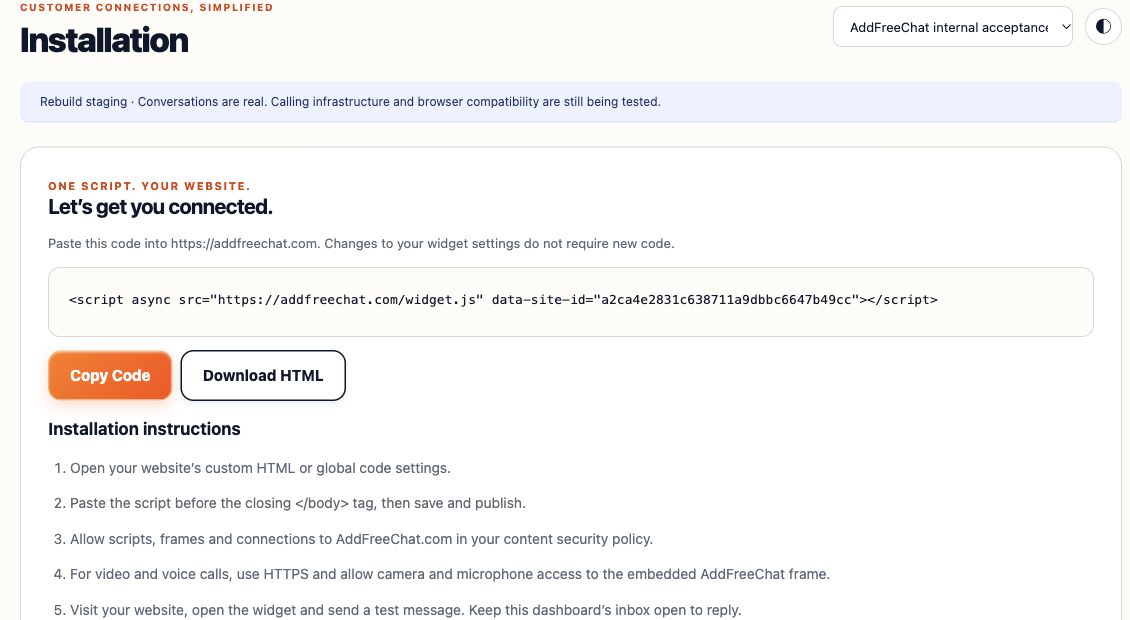
Keep the integration outside WooCommerce core and the parent theme. WooCommerce’s development guidance recommends update-safe customisation. Direct edits to managed plugin or parent-theme files can vanish during updates and complicate troubleshooting. A recoverable staging change is preferable to an unreviewed edit on a busy live checkout.
Install once in the shared layout for the pages you intend to support. A product-page block only covers that page, while a shared layout can affect the whole storefront. Avoid simultaneously adding the same script through a tag manager and a theme field. Record which location owns the integration so future maintainers can find it.
4. Check the shopping interface before testing messages
Publish the change and clear only the relevant page caches. Visit the shop as an ordinary logged-out visitor. Inspect a product page, category page and basket at desktop and narrow mobile widths. Open and minimize the widget and confirm that quantity controls, product choices and primary purchase buttons remain usable.
Test the checkout carefully using your normal safe test process. Do not submit a real paid order merely to prove that chat loads. Your payment provider may place its fields inside protected frames, and the chat widget should not attempt to inspect or manipulate them. Keep payment entry in the checkout flow rather than asking a customer to paste details into a conversation.
If a particular page is unsuitable for chat, use supported visibility settings to exclude it and check that the exclusion behaves as intended. Removing an obstruction is more important than displaying the launcher on every possible screen. Recheck after changing the theme, checkout layout or consent manager.
5. Prove the shopper-to-agent conversation
Keep Live Inbox open for the selected shop website. From the product page, send a unique harmless test question about the sample item. Reply from the inbox, verify the visitor sees the answer, and follow the link you supplied. A correct link should lead to the relevant public product or policy page, not an administrator screen.
Ask for only the information needed to answer. For a sizing question, measurements or intended fit may be sufficient; the customer’s home address usually is not. For an existing order, use your established identity-check procedure before revealing private information. Knowing an order number alone is not a universal verification method.
Write useful private notes when another agent must continue the conversation. Keep internal assumptions separate from confirmed customer facts. Saved replies can speed up recurring questions, but agents should adapt them to the actual product, destination and policy. A copied delivery promise can be wrong even when its grammar is perfect.
6. Use help answers to address recurring friction
Widget Designer supports searchable plain-text help questions and answers. Add a small set drawn from real recurring conversations, such as where to find the size guide or how to read the published delivery policy. Keep answers concise and maintain the underlying public policy page as the authoritative source when rules change.
Visitor quick replies can offer starting phrases such as “I need help choosing a size.” They place text in the composer for the visitor to review and send; they should not be described as automatic order routing or basket detection. Choose options that help people explain their need without implying the system has already inspected their order.
7. Measure usefulness without inventing a sales uplift
Review actual message volume, response patterns and conversation ratings. AddFreeChat’s reports help you understand support activity, but they do not establish that a particular conversation caused a purchase. A customer who chats may already differ from one who does not, so a simple comparison can be misleading.
If you want to evaluate conversion, define a consistent measurement method in your own commerce analytics and respect the applicable consent choices. Start with observable operational outcomes: fewer repeated sizing questions, clearer product information, or fewer handovers caused by missing details. Record the period and sample size before drawing conclusions.
Maintenance and common questions
Does installation expose WooCommerce orders to agents? The basic embed does not create an order-data connector. Use your existing authorised order workflow and do not imply automatic customer identification.
Should agents request card numbers in chat? Keep card entry in the secure payment flow. If a shopper has a payment problem, guide them to the appropriate checkout or provider support process without collecting credentials or full payment details.
After a WooCommerce or theme update, repeat the product, basket, checkout-layout and two-way message checks. Update help answers when shipping or return policies change. Live chat is useful when the answers are current and the shop remains easy to use; the launcher itself is only the entry point.
A practical review exercise
For a concrete acceptance question, pick a sample product and ask whether its listed accessory is included. The agent should answer from the current public contents information and link to it. Confirm that the shopper can still change quantity and use the basket after opening and closing the widget.
References and review notes
Platform instructions reviewed on 27 November 2026. Builder-specific steps follow the linked official documentation and still require testing on your own published site.